
If you want to try a different way to access your smartphone, a Gesture Lock Screen app may be worth exploring. These apps introduce gesture-based interactions that can make your phone feel more personalized.
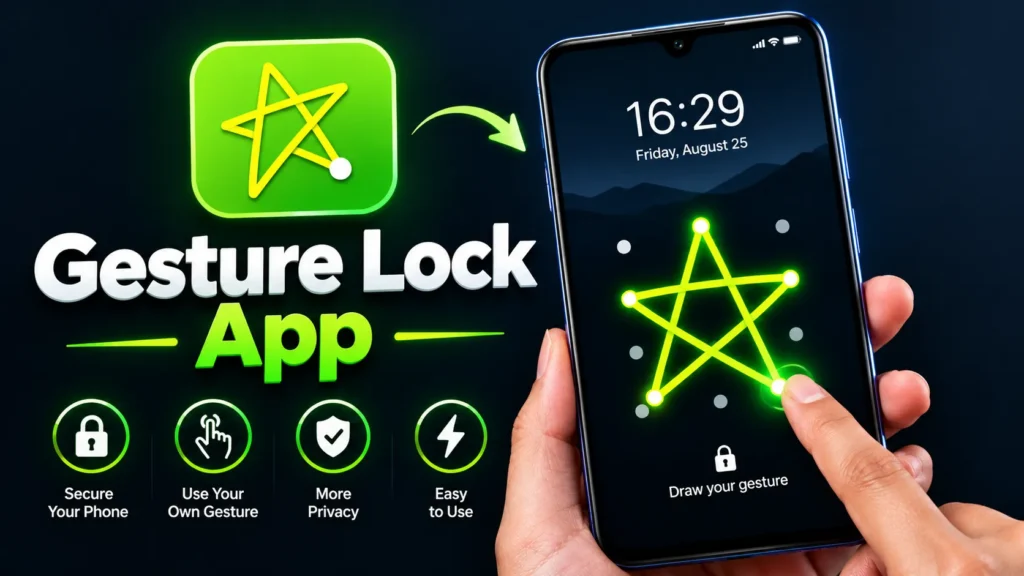
Depending on the application, you may be able to draw a pattern, swipe in a particular direction, or use a custom gesture to access selected features.
Unlike a traditional PIN or password screen, gesture-based interfaces focus on touch movements. They can also provide a different look for users who enjoy experimenting with Android customization apps.
What Is a Gesture Lock Screen App?
A Gesture Lock Screen app is an Android application that uses touch gestures for certain screen interactions. Some apps offer gesture-based unlocking features, while others provide shortcuts or a customized lock screen experience.
The available functionality depends on the specific application. Not every gesture app can replace Android’s built-in lock screen or provide the same level of security as the system’s PIN, password, or biometric authentication.
Features to Explore
1. Custom Gesture Controls
Some apps let you configure gestures such as drawing shapes or swiping across the screen. These gestures may be used to launch supported shortcuts or perform specific actions.
2. Personalized Lock Screen
Depending on the app, you may be able to customize the background, clock style, colors, or other visual elements. This can help you create a lock screen that matches your wallpaper and overall phone theme.
3. Quick Access to Apps
Certain gesture applications allow you to assign actions to specific gestures. For example, a supported gesture might open a frequently used application or shortcut.
4. Simple Touch Interactions
Gesture-based controls can reduce the number of taps required for supported actions. However, the convenience depends on how accurately the app recognizes gestures and how well it works with your device.
How to Use a Gesture Lock Screen App
- Open the Google Play Store and search for a gesture lock screen application.
- Review the developer information, ratings, permissions, and privacy policy.
- Install the application and follow its setup instructions.
- Choose your preferred gestures and customization options.
- Test the gestures to understand how they work.
- Keep your Android screen lock enabled with a strong PIN, password, or supported biometric method.
Be careful when granting accessibility or overlay permissions. Only enable permissions that are necessary for the features you want to use.
Is a Gesture Lock Screen App Secure?
Not every gesture application provides genuine device-locking security. Some apps only display a customized interface or provide shortcuts, which means they should not be treated as a replacement for Android’s secure screen lock.
For better protection, enable your phone’s built-in screen lock and use a strong PIN or password. You can also use fingerprint or face authentication if supported by your device.
Avoid drawing predictable gestures if an application relies on them for authentication, and never assume that a third-party lock screen protects your phone unless its security functionality is clearly established.
Final Words
A Gesture Lock Screen app can be an interesting option if you enjoy customizing your Android phone and exploring touch-based controls. Depending on the application, you may get custom gestures, quick shortcuts, and additional personalization options.
Before installing one, check its compatibility and privacy practices. Most importantly, keep your phone’s built-in security enabled so that customization does not compromise your personal information.
