
If you want to give your Android phone a fresh look without changing your entire theme, a notification bar customization app can be worth trying.
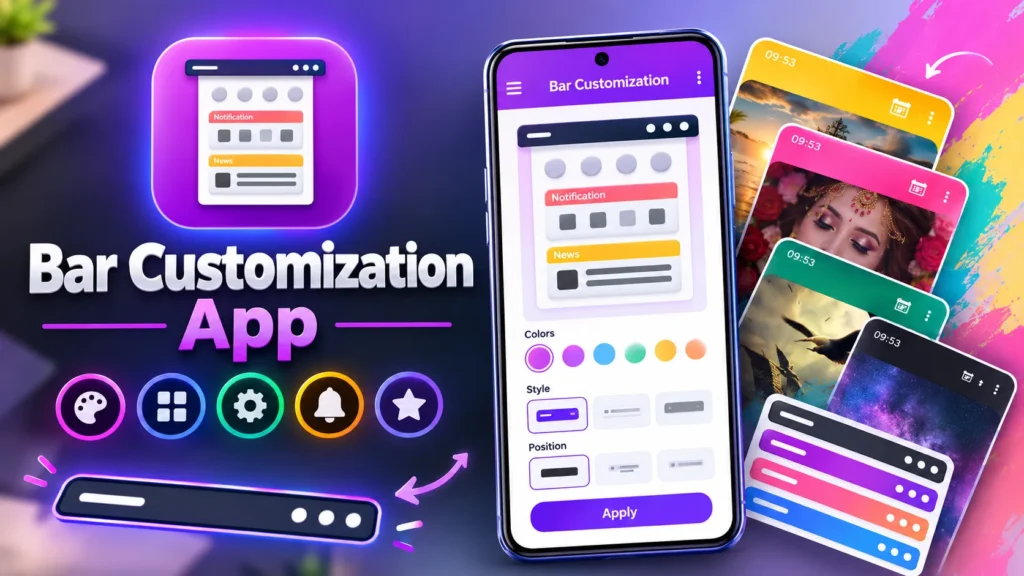
These apps let you change the appearance of your notification panel, customize quick settings, and create a smartphone interface that better matches your personal style.
The notification bar is one of the most frequently used parts of an Android phone. You open it to check notifications, adjust brightness, enable Wi-Fi, switch on Bluetooth, and access other useful controls. With the right customization app, you may be able to make this area look more attractive and convenient.
What Is a Notification Bar Customization App?
A notification bar customization app is an Android application designed to modify the appearance or functionality of your notification shade and quick settings panel.
Depending on the app, you may be able to choose different colors, adjust the panel’s background, customize control tiles, or apply a modern interface inspired by other smartphone designs.
Some applications focus mainly on appearance, while others provide additional shortcuts and gesture-based controls. The features available depend on the specific app and your Android version.
Key Features to Explore
1. Customize Colors and Backgrounds
One of the main reasons to use a notification customization app is to change the default appearance of the notification panel. Some apps offer custom colors, gradients, transparency effects, or background images.
You can choose a style that matches your wallpaper or the overall theme of your home screen.
2. Personalize Quick Settings
Quick settings provide shortcuts to frequently used phone functions. Depending on the app and system permissions, you may be able to rearrange or customize supported controls.
This can help you create a panel that feels more organized and easier to use.
3. Try a Different Interface Style
If you prefer a clean, minimal interface or a more colorful notification panel, customization apps may offer different layouts and visual styles.
Some apps imitate the appearance of popular Android interfaces. However, the exact design options depend on the application, and not every app can replace the original system notification shade completely.
4. Improve Everyday Convenience
A well-organized notification panel can make common controls easier to access. Some apps also provide shortcuts for supported functions, reducing the need to navigate through multiple settings screens.
Keep in mind that certain controls may still open your phone’s original settings.
How to Customize Your Notification Bar
Getting started is generally straightforward.
- Open the Google Play Store and search for a notification bar customization app.
- Review its features, ratings, privacy information, and requested permissions.
- Install the application you trust and open it.
- Follow the setup instructions provided by the developer.
- Grant only the permissions necessary for the features you want to use.
- Choose your preferred colors, layout, and available quick settings.
- Test the notification panel to make sure notifications and important controls continue to work correctly.
Some apps may require accessibility access, notification access, or permission to display over other apps. These permissions can provide additional functionality, but you should understand why they are needed before enabling them.
Is a Notification Bar Customization App Safe?
The safety of a customization app depends on its developer, permissions, privacy practices, and implementation.
Before installing one, check whether the application clearly explains its features and data collection practices. Avoid granting unnecessary permissions, especially when an app requests access unrelated to its advertised purpose.
If an application needs notification access, remember that this permission may expose notification content to the app. Only enable it when you trust the developer and understand how the information may be used.
You should also test the application for excessive battery consumption, unexpected advertisements, or problems with notification delivery.
Will It Work on Every Android Phone?
Not necessarily. Android manufacturers use different interfaces, and newer Android versions may restrict how third-party apps change system elements.
A customization app may work differently on Samsung Galaxy, Motorola, Xiaomi, OnePlus, and other Android devices. Some features may be unavailable without additional permissions or may stop working after a system update.
If the app does not behave as expected, disable its customization service and return to your phone’s default notification settings.
Final Words
A notification bar customization app can help you personalize an important part of your Android interface without completely changing your launcher or wallpaper. From new colors and backgrounds to convenient shortcuts, the available features can make your phone feel more personal.
Choose an app with clear privacy information, useful customization options, and good compatibility with your device. Most importantly, make sure that customization does not interfere with essential notifications or everyday phone functions.
