
Updating your social media display picture should be simple, but choosing the right photo can sometimes be frustrating.
You may have a picture that looks perfect in your phone’s gallery, but when you try to use it as a profile photo, the platform asks you to crop it. As a result, part of your face, outfit, background, or another important detail may disappear.
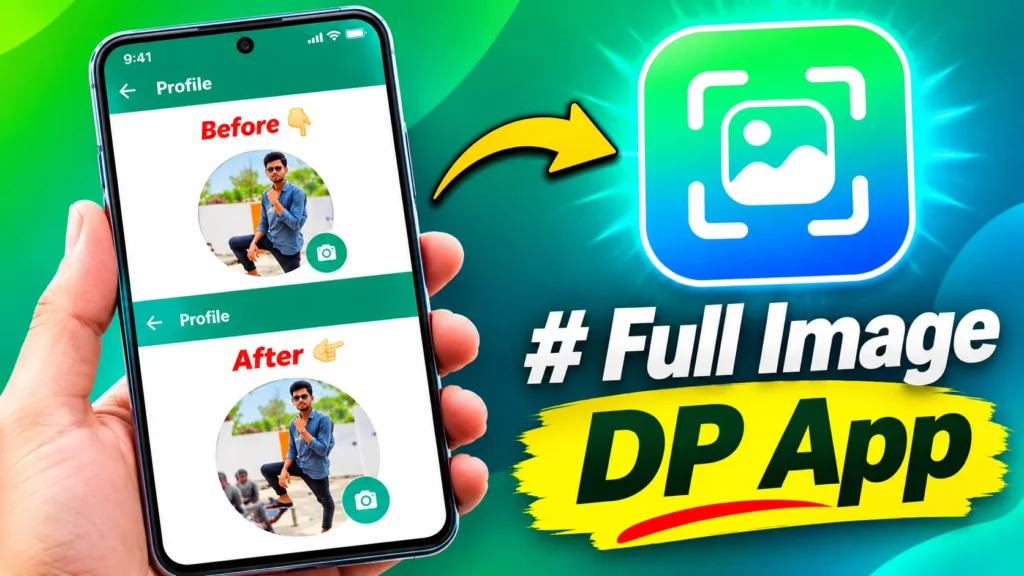
Full Image DP – DP Editor App is an Android photo-editing app designed to help with this problem. It provides tools for resizing photos into a square format and filling the unused space with a blurred or coloured background. You can also adjust the image position, apply effects, change its shape, and add borders.
The main purpose of the app is to help you prepare a profile picture that includes more of the original photo instead of simply cutting away its edges. Here is a closer look at its features and how they can help when creating a display picture for social media.
What Is Full Image DP – DP Editor App?
Full Image DP – DP Editor App is a photography application developed by Suman Kumari. It is made for people who want to prepare full-size profile pictures for platforms such as WhatsApp, Instagram, Facebook, and other social media services.
Many profile-picture layouts use a square image or show the final picture inside a circular frame. When your original photo has a portrait or landscape shape, fitting it into a square can remove some of its content. This app offers a different approach: resize and position the original photo inside a square canvas, then use a background to fill the remaining area.
For example, imagine you have a full-length portrait photograph. Cropping it into a square may remove your feet or the background around you. With a no-crop editing approach, you can keep more of the original photograph visible and use a blurred or coloured background to complete the square layout.
The app is free to download and its Google Play listing indicates that it contains advertisements.
Main Features of Full Image DP App
1. Create a No-Crop Profile Picture
The central feature is its no-crop profile picture maker. Instead of removing the edges of your original photo to fit a square layout, you can resize and position the photo within the available space.
This is useful when the whole subject matters. You may want to use a full-length picture, a group photo, a travel photograph, or an image with an important background. A conventional crop can remove those details, while a no-crop layout gives you more control over how the photo is presented.
Keep in mind that this feature prepares the image before uploading. A social media platform may still display the uploaded image inside its own circular or cropped profile-picture frame.
2. Add a Blurred Background
A blurred background is one of the useful options for filling empty space around a photo.
When you resize a portrait or landscape image into a square canvas, blank areas may appear on the sides or around the main picture. You can use a blurred version of the photograph as the background to make the overall design look more complete.
This style works particularly well for portraits. The original image remains the main focus, while the blurred background creates a softer appearance around it.
You can also experiment with the image size and positioning to find a layout that looks balanced.
3. Change the Background Colour
Not every picture needs a blurred background. Sometimes a simple solid colour looks cleaner and makes the subject stand out.
Full Image DP includes an option to change the background colour. You can choose a colour that matches your clothing, the main subject, or the overall mood of the photograph.
A neutral shade can work well for professional profile pictures, while brighter colours may suit casual social media profiles. Try to avoid choosing a background that competes with the subject. The purpose of the background is to support the photo, not distract from it.
4. Resize Photos into a Square Format
The app provides an automatic photo-resizing option for creating a square image in a 1:1 ratio.
This is useful when your original picture has a different aspect ratio. Instead of manually creating a square canvas in another editor, you can use the resizing feature to prepare the image for a profile-picture layout.
The square format gives you a consistent starting point, but you should still check how the social media platform displays profile pictures before uploading.
5. Adjust Image Size and Position Manually
Automatic resizing may not always place the subject exactly where you want it. For this reason, manual adjustment is important.
The app listing describes pinch gestures for zooming and two-finger movement for changing the image position. These controls can help you bring the subject closer, move it towards the centre, or adjust how much of the original image is visible.
For example, if your face appears too small inside the square layout, you can zoom in slightly. If the photograph includes your full outfit and you want to preserve it, you may prefer a smaller image size.
The best result depends on the original photograph and the way you plan to use it.
6. Apply Image Effects
Full Image DP also includes editing effects that can change the appearance of your picture. These options can help you give a basic photograph a more customised look before using it as a display picture.
Use effects carefully. A profile photo is usually displayed at a small size, so excessive editing may make the subject harder to recognise. A natural-looking image is often more useful than one with too many visual effects.
7. Add Borders and Image Radius
The app provides border and colour-border options, along with an image-radius adjustment.
A border can create a visible separation between the main photo and its background. This is particularly useful when the two areas have similar colours.
The image-radius option lets you change the appearance of the photo’s corners. You can experiment with a rounded style for a softer design or keep the corners more conventional.
These options are useful when you want your profile picture to look different without adding unnecessary decorations.
8. Rotate and Fine-Tune Your Photo
Sometimes a photo is slightly tilted or the subject is not positioned correctly. The rotation and manual adjustment options can help you correct the layout before using the finished image.
Small adjustments can make a noticeable difference. Check the alignment of the face, shoulders, and other important parts of the image. Avoid rotating the photo unnecessarily if the original composition already looks good.
How to Use Full Image DP – DP Editor App
You can follow this general editing workflow to prepare a profile picture:
- Install Full Image DP – DP Editor App from its Google Play listing.
- Open the app and select the photograph you want to edit.
- Use the resizing option to prepare a square profile-picture layout.
- Adjust the size and position of the original photo using the available manual controls.
- Choose a blurred background or a suitable background colour to fill the remaining space.
- Experiment with image effects, borders, and corner-radius settings if needed.
- Review the complete image before saving or using the finished result.
- Upload the prepared picture to your preferred social media platform and check how it appears.
The exact layout and controls may vary depending on the app version. Also, remember that the platform may apply its own profile-picture display format after upload.
Who Should Try This DP Editor?
Full Image DP may be useful for people who frequently update their social media profile pictures and want more control over how their photographs fit into a square layout.
It can be worth trying if you:
- Want to use a portrait photo without removing too much of the original image.
- Have a landscape photograph that needs to fit a square profile-picture canvas.
- Prefer a blurred background instead of empty space.
- Want to add a simple border or change the photo’s corner shape.
- Need basic image resizing and positioning tools.
You do not need to use every editing option. For many pictures, resizing the image and choosing a suitable background may be enough.
Things to Check Before Using the App
A no-crop editor cannot control how every social media platform displays profile pictures. Some services show profile photos inside circular frames or apply additional adjustments. Therefore, an image that looks complete in the editor may still appear slightly different after uploading.
You should also remember that the original image’s quality matters. Starting with a clear, high-resolution photograph generally gives you a better result than editing a very small or blurry image. Resizing an image does not automatically restore details that are missing from the original.
The app contains advertisements, according to its Google Play listing. Before selecting any photo-editing application, it is also sensible to review its current permissions and privacy information. The Google Play data-safety section provides the developer’s declarations about data collection and sharing.
Is Full Image DP – DP Editor App Worth Trying?
Full Image DP – DP Editor App focuses on a specific photo-editing requirement: preparing profile pictures without relying on a tight crop. Its square resizing, background blur, colour options, manual positioning, effects, borders, and image-radius controls provide several ways to customise a display picture.
It is not a replacement for a complete professional photo-editing suite. Instead, it is aimed at people who want a straightforward way to adjust a photo for social media use.
If you often lose important details while cropping your display picture, the app’s no-crop layout is worth exploring. Just review the final result on the social media platform before using it as your permanent profile photo.
